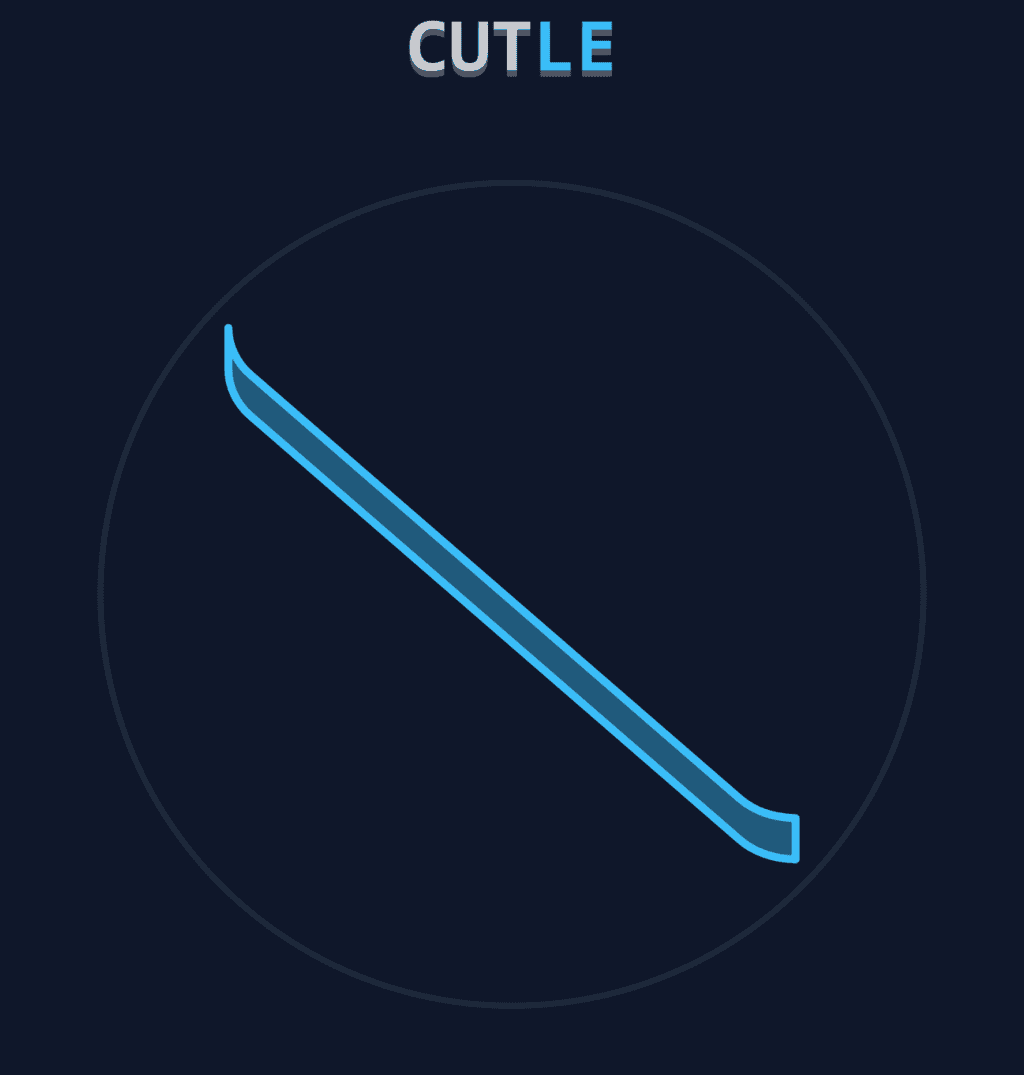
How to play custom shapes
Cutle gives you two ways to play beyond the daily challenge: generate a new shape instantly, or bring your own SVG path.
Method 1: Generate a random shape
Open the Random Shape Generator when you want a fresh challenge without finding or editing an SVG file.
- Choose Simple, Standard, or Complex.
- Select Random Shape to create a preview.
- Select Load & Play This Shape to load that exact outline into the game below.
- Drag a line across the shape and try to divide it into two equal areas.
Changing the algorithm does not replace the current preview. Select Random Shape again to generate an outline with the new algorithm.
The shape is generated in your browser. It is not uploaded to the Cutle API or added to your daily progress.
Method 2: Use your own SVG path
Use this method when you already have a specific SVG design or want to share the same shape with someone else.
Step 1: Find an SVG shape
First, find an interesting or complex SVG shape from anywhere—such as the SVGRepo library.
Select a shape, then click “Edit Vector.”
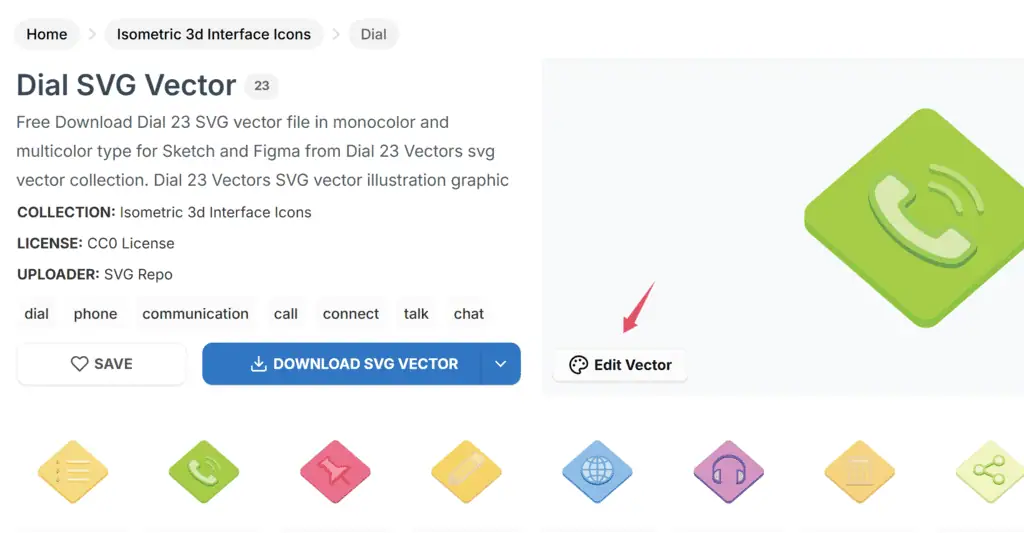
Copy the SVG data.
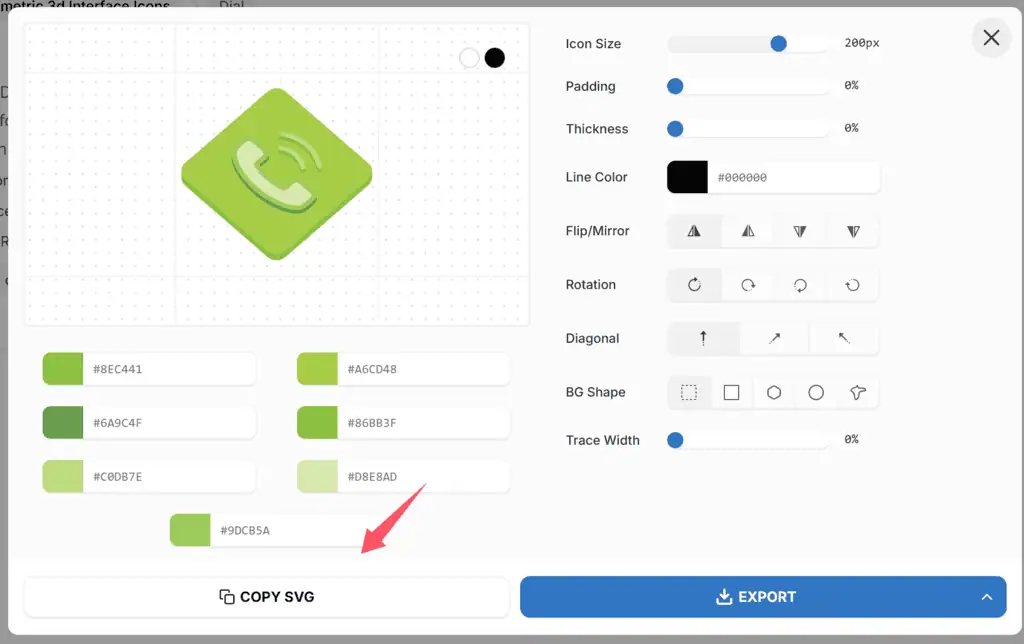
Step 2: Get the SVG path
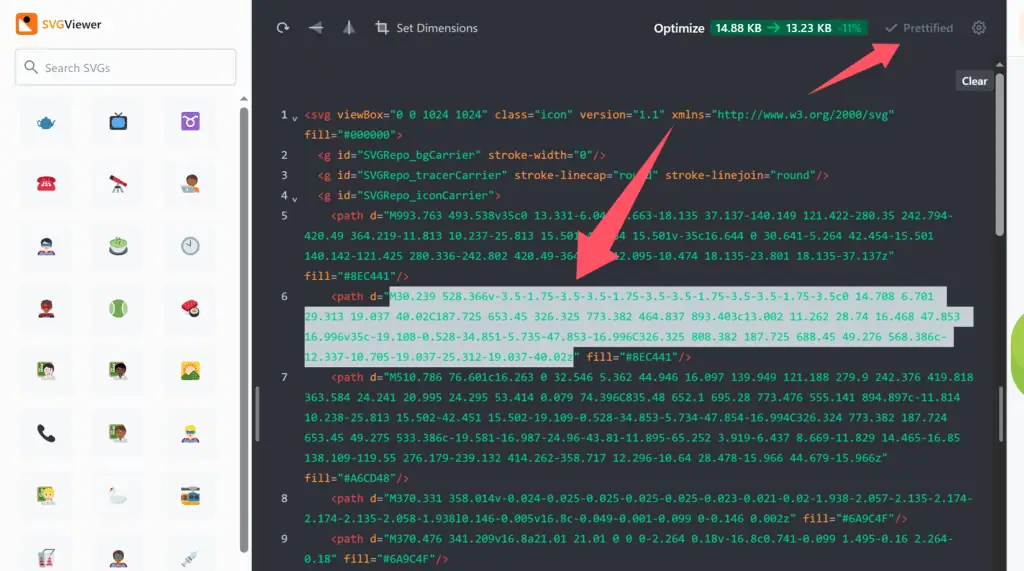
A complete SVG file often contains multiple paths, but Cutle accepts one path. Open SVG Viewer and paste the data you copied in Step 1.
Select “Prettified,” then copy the d attribute from the path you want to play. The highlighted area below shows where to find it.
If needed, edit the path in SVG Path Editor.
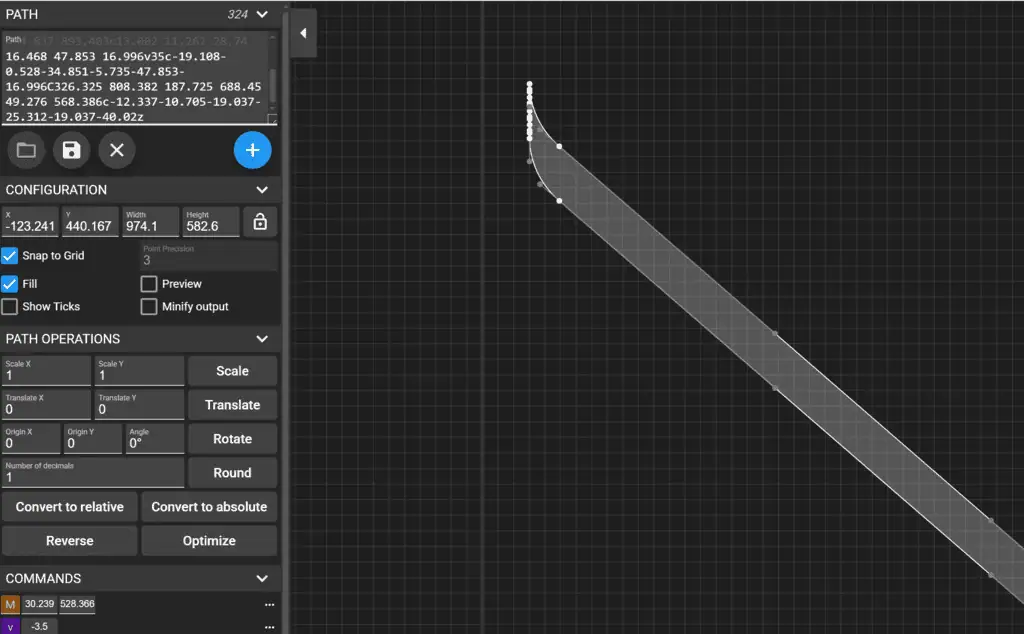
Step 3: Normalize the path
SVG paths use different coordinate systems and dimensions, so normalize the path before playing it.
Open the SVG Path Normalizer and paste the d value into the input box to generate a normalized path.
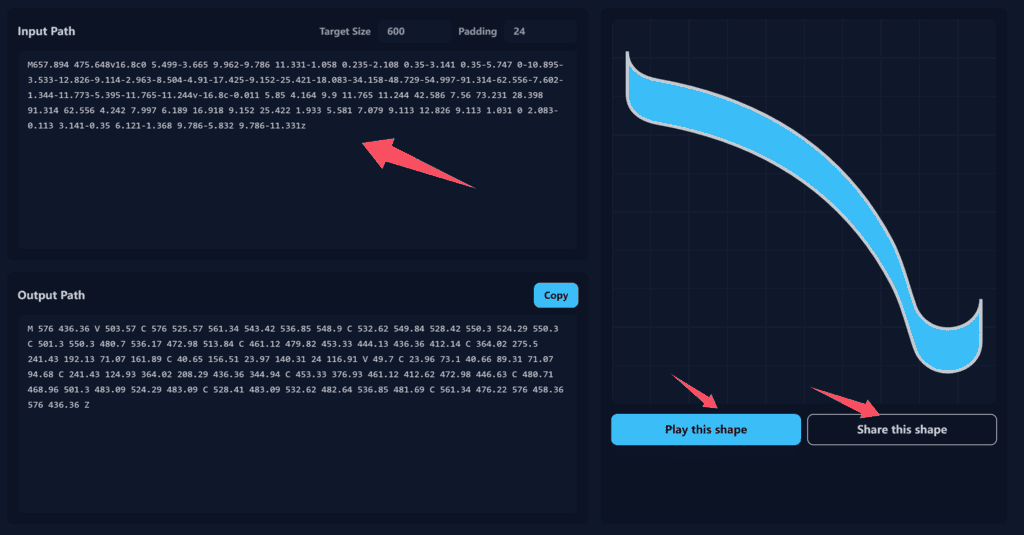
Step 4: Play or share the shape
Use one of the buttons below the shape preview:
- Play this shape: Open the dedicated
/play/page with the normalized shape loaded and ready to cut. - Share this shape: Copy a
/play/?d=...link containing the shape data so friends can open the same challenge.